
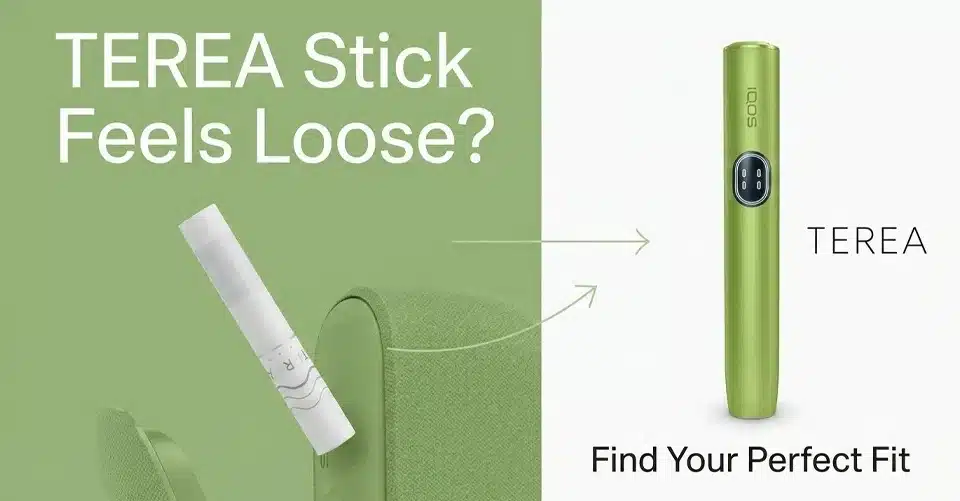
Why Is My IQOS ILUMA Not Reading the Stick?
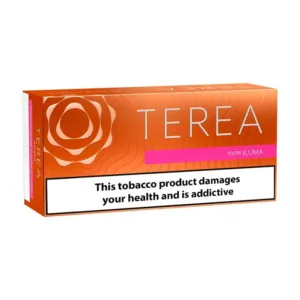
You insert a TEREA stick into your IQOS ILUMA and wait for the usual vibration, but nothing happens. Before resetting the device, check that the stick is compatible, correctly inserted and unused. Then try the manual start procedure for your exact model. If the device vibrates and its lights or screen indicate that preheating has started, it has recognised the stick. You can then check whether AutoStart is enabled. If manual start also fails, inspect the battery level and status indicators before trying a reset.
Check the TEREA Stick Before Resetting Your IQOS
Confirm the Stick Is Compatible
IQOS ILUMA uses SMARTCORE STICKS designed for its induction heating system, including TEREA. HEETS are made for older blade-based IQOS models and will not activate an ILUMA device. If you have both types at home, check the name printed on the packaging before inserting another stick. Our HEETS vs TEREA compatibility guide explains which stick families work with each device generation.
Use a Fresh Stick and Insert It Correctly
Take an unused, undamaged TEREA stick from its pack. Insert it straight into the holder with the filter facing outwards. Push it in gently until the line on the filter reaches the opening. Do not force it further if you feel unexpected resistance. Remove the stick and inspect it before trying again.
A previously used stick should not be inserted again. If the first stick does not work, try another fresh one. If the replacement heats normally, the problem may have been with that individual stick. If several fresh sticks from different packs fail, continue with the device checks below.
Try the Manual Start Procedure for Your IQOS ILUMA Model
The original IQOS ILUMA ONE and the newer IQOS ILUMA i ONE have similar all-in-one designs, but their controls and reset procedures differ. Two-piece models also use different manual start controls depending on their generation. If you are unsure which version you own, first check our IQOS model identification guide.
| IQOS Model | How to Start Heating Manually |
|---|---|
| IQOS ILUMA and ILUMA PRIME | Insert the TEREA stick, then press the button on the holder to start preheating. |
| IQOS ILUMA ONE | Insert the stick and press the device button for approximately one second. |
| IQOS ILUMA i and ILUMA i PRIME | Insert the stick, then swipe upwards on the holder’s touchscreen to start preheating. |
| IQOS ILUMA i ONE | Insert the stick and press the device button for approximately one second. |
On IQOS ILUMA i and ILUMA i PRIME, preheating can start automatically after inserting a compatible stick or manually by swiping up on the touchscreen. If manual starting works but automatic activation does not, check the AutoStart setting and the device’s configuration.
Also check whether Device Lock is active if your model displays a locked status or refuses to start. If the device remains locked or the controls do not respond, consult IQOS support for the appropriate next step.
Check the Battery and IQOS Status Lights
The Holder Does Not Respond or Its Lights Stay Off
On a two-piece IQOS ILUMA, the pocket charger may have enough battery while the holder itself is discharged. Place the holder back inside the pocket charger and check its charging indicators. Make sure it is seated correctly and that the charger has sufficient power.
For an all-in-one model, connect the device directly to a power source using a compatible charging cable and adaptor. If an IQOS ILUMA i device is completely discharged, its charging indicators may take several minutes to appear. IQOS advises allowing up to 10 minutes for lights to show on some fully depleted models.
What the Original IQOS ILUMA ONE Lights Mean
If you have the original ILUMA ONE, check the colour and pattern of the flashing lights:
- Yellow light at the bottom: The battery is low and the device needs charging.
- All lights flash white twice: The device may be outside its operating temperature range.
- Red light at the bottom: A device error may have occurred. Try the recommended reset procedure.
Other ILUMA models use their own status indicators, so do not assume that every flashing pattern has the same meaning across the range. Check the instructions for your exact model before interpreting an unfamiliar light signal.
Check the Operating Temperature
If your IQOS has been left in a cold car or exposed to high temperatures, allow it to return to room temperature before trying again. IQOS specifies an operating range of 0–40°C for ILUMA i devices. Two white flashes can indicate that the device is outside its recommended temperature range.
How to Reset IQOS ILUMA if TEREA Still Won’t Heat
If you have checked the stick, tried manual starting and confirmed that the device has sufficient charge, a reset may help resolve a temporary operating issue. Follow the procedure for your exact model.
IQOS ILUMA and ILUMA PRIME
Place the holder inside the pocket charger. Press and hold the button on the pocket charger for 10 seconds, then release it. The status lights will switch off and blink to confirm that the reset has completed.
IQOS ILUMA i and ILUMA i PRIME
Return the holder to the pocket charger. Press and hold the pocket charger button for 10 seconds, then release it. The status lights will turn off, blink twice and turn back on to confirm the reset.
Original IQOS ILUMA ONE
Press and hold the button on the device for 10 seconds, then release it. The status lights will turn off and blink twice before turning on again to confirm the reset.
IQOS ILUMA i ONE
Press and hold the button on the device for 7 seconds, then release it. The status lights will turn off, blink twice and turn back on to confirm that the reset is complete.
After resetting, insert one fresh, compatible TEREA stick and try the manual start procedure again. If the device still does not respond, a red indicator returns or fresh sticks from different packs fail to activate it, contact IQOS support. Provide the full model name, the light colour and flashing pattern, and explain whether manual starting or resetting changed anything.
If a stick has broken inside the holder and is blocking the opening, do not force tools into the device. Stop troubleshooting and ask IQOS support how to handle the obstruction for your particular model.
Does IQOS ILUMA Need Internal Cleaning?
Unlike older blade-based IQOS devices, the ILUMA range uses bladeless induction heating and does not require routine internal cleaning. Do not insert cleaning tools into the heating chamber or attempt to remove internal components. If the device has a charging problem, check the charging port and, on two-piece models, the contact points between the holder and pocket charger. Follow the manufacturer’s cleaning instructions for those areas.



Add comment
You must be logged in to post a comment.